
Windows
Windows 10 and 11 (64-bit)
.exe installer · 65 MB
Download for WindowsWBGS IPTV Player is a white-label IPTV app: it shows your logo and your name to your customers, with your own DNS. You bring the brand; we bring the app, the updates and the yearly billing.
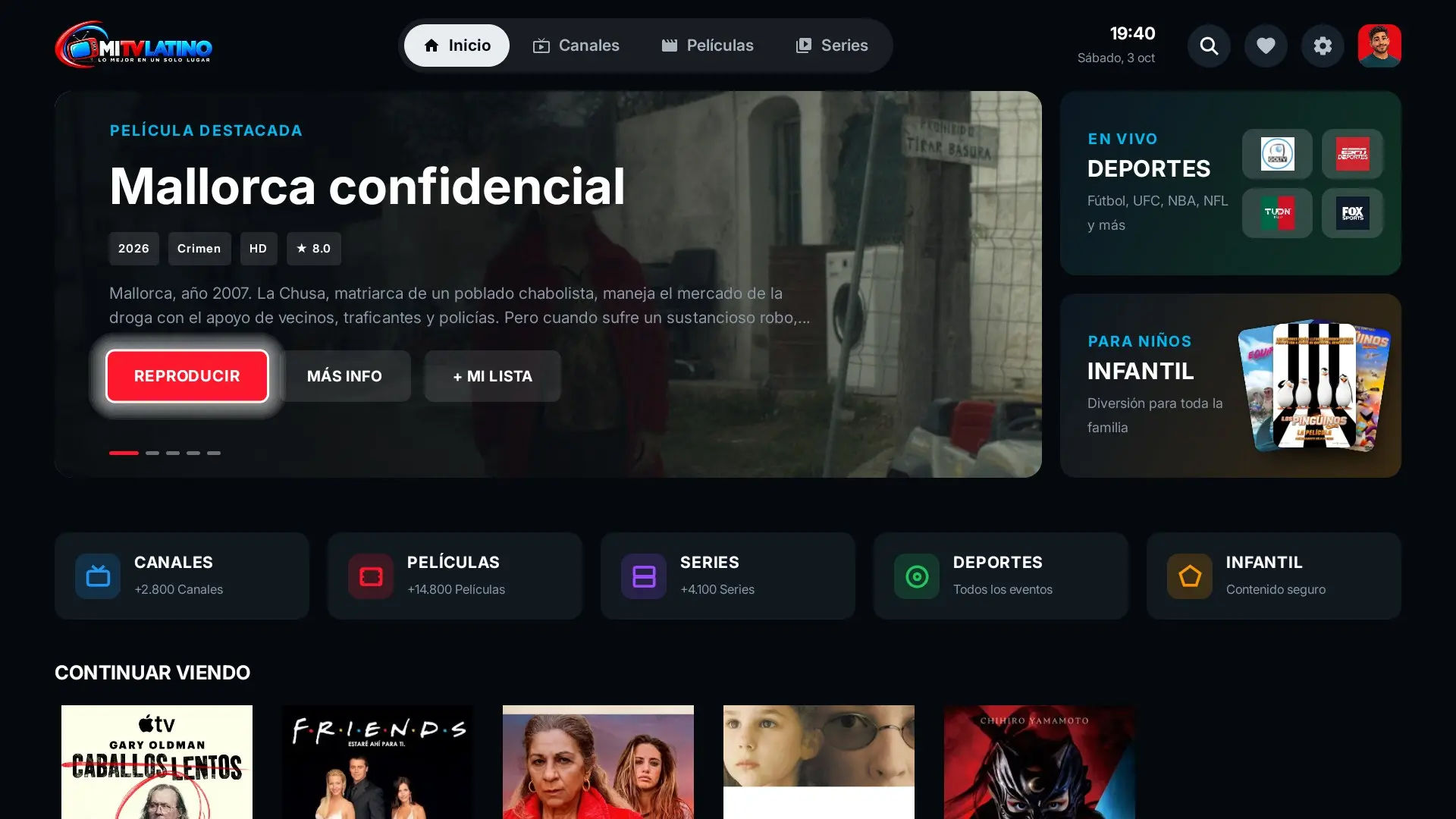
This is how it looks on your customers’ TV. The app shows an image: your logo, or a logo we create from the text of your name. The logo you try here is not uploaded anywhere.
Install it today from Google Play. On LG and Samsung Smart TVs you can already install it without waiting for their stores, from your PC or Mac.
Phones, tablets and Android TV (Google TV)
Install from Google PlayLG Smart TVs
See how to install it on LGSamsung Smart TVs
See how to install it on SamsungYour $200 yearly account already covers the LG and Samsung apps: when they are published, you use them with your brand at no extra cost.
You do not have to wait for the LG Content Store. With our free program for Windows and Mac you install the app on your LG Smart TV in a few minutes: you enter your TV’s IP and key, and the program does the rest.
Go to the LG Developer website
From your computer or phone open webostv.developer.lge.com. That is where you create the account that unlocks your TV’s developer mode. It is free.
Create your account
At the top right click “Sign In” and then “Create Account”. Pick your country, enter your email and a password, and accept the terms. If you already have a regular LG account, you can sign in with it too.
Confirm your email
If LG asks you to confirm your email, open its message and click the link. Then sign in on the website to check your account works. Keep your email and password: you will use them on the TV.
Turn on the TV and connect it to the internet
Use your LG TV remote. It must be on the same Wi-Fi or network as your computer.
Get the “Developer Mode” app on the TV
On the TV open the “LG Content Store”, search for “Developer Mode” and install it. It is free.
Sign in to the app
Open “Developer Mode” and enter the email and password of your LG Developer account (the one you created in steps 2 and 3).
Turn on “Dev Mode Status”
Set “Dev Mode Status” to ON. The TV will restart by itself; wait until it is back on.
Turn on “Key Server”
When the TV is back on, open “Developer Mode” again and set “Key Server” to ON.
Write down the IP and the key
On the same screen you will see the TV “IP” (for example 192.168.1.25) and the “Passphrase”, a key of 6 letters or numbers at the bottom left. Keep the upper and lower case exactly.
Keep the TV on
The TV must stay on while you install. Developer mode lasts a few hours: if a lot of time passes, open “Developer Mode” and press “Extend” to renew it before “Remain Session” runs out.
Pick your system. It is free and you do not need to install anything else.
Windows 10 and 11 (64-bit)
.exe installer · 65 MB
Download for WindowsMacBook and iMac with Apple chip (M1, M2, M3, M4) or Intel
.dmg file · 161 MB
Download for MacWindows may show “Windows protected your PC”: click “More info” and then “Run anyway”. It appears because the program is new, not because of a problem.
On Mac, the first time macOS shows “Not Opened” because the program does not come from the App Store. Click “Done”, open System Settings → Privacy & Security, scroll to “Security” and click “Open Anyway” next to WBGS TV INSTALL; confirm with your password or Touch ID. You only do this once. First drag the app to the Applications folder. If you do not see the button, open Terminal and paste: xattr -cr "/Applications/WBGS TV INSTALL.app"
Open the program
Choose “LG” when it asks for your TV brand.
Enter the IP and the key
The IP and key you wrote down in step 1. The key is never saved.
Press Install
In under a minute you will see WBGS IPTV Player in your TV app list. To update it, repeat this step.
It works with your own logo too: the app that gets installed is the same one your customers see with your brand.
With the same free WBGS TV INSTALL program you install the app on your Samsung Smart TV (Tizen) from a Windows or Mac computer: the program finds your TV on the network and does the rest.
Have a Samsung account (free)
If you do not have one, go to account.samsung.com from your computer or phone and create an account with your email. It only authorizes your TV; you type your password on the Samsung page and it is not stored.
Turn on the TV and connect it to the internet
Use your Samsung TV remote. It must be on the same Wi-Fi or network as your computer.
Open “Apps” and type 12345
In the TV menu go to “Apps” and type 1 2 3 4 5 with the remote. If your remote has no number keys, press the “123” button or use the free “SmartThings” phone app, which has a remote with numbers.
Turn on “Developer mode”
Set “Developer mode” to ON. In “Host PC IP” type your computer IP (the program shows it in the “Prepare the TV” step; on Windows you can also see it by typing “ipconfig” in the start menu) and press OK.
Restart the TV
Turn it off and on again so developer mode takes effect. Keep it on while you install.
It is the same program used for LG. For Samsung it works on Windows and Mac. It is free and you do not need to install anything else.
Windows 10 and 11 (64-bit)
.exe installer · 65 MB
Download for WindowsMacBook and iMac with Apple chip (M1, M2, M3, M4) or Intel
.dmg file · 161 MB
Download for MacWindows may show “Windows protected your PC”: click “More info” and then “Run anyway”. It happens because the program is new, not because of a problem.
On Mac, the first time macOS shows “Not Opened” because the program does not come from the App Store. Click “Done”, open System Settings → Privacy & Security, scroll to “Security” and click “Open Anyway” next to WBGS TV INSTALL; confirm with your password or Touch ID. You only do this once. First drag the app to the Applications folder. If you do not see the button, open Terminal and paste: xattr -cr "/Applications/WBGS TV INSTALL.app"
Open the program
Choose “Samsung” when it asks for your TV brand. If Windows shows a firewall prompt (“Do you want to allow…?”), press “Allow access”: the install cannot continue without it.
Find your TV
Press “Find my TV” and tap yours. If it does not show up, type its IP (on the TV: Settings → Network → Network status).
Press Install and sign in to Samsung
The first time your browser opens once so you can sign in with your Samsung account; then go back to the program. In about a minute you will see WBGS IPTV Player in your TV apps. To update it, repeat this step.
It also works with your own logo: the app that gets installed is the same one your customers see with your brand.
Enter your email and your brand name. Your username and password arrive by email.
Upload your logo (a PNG with a transparent background works best). We optimize it so it loads fast on any TV.
Enter the server and a test line. We only use it to check and we do not store it.
Your customers install it from Google Play and sign in with your server. They see your brand.
Yearly card payment. It does not renew by itself: we email you before it expires.
$0 5 days
$200 USD a year
$50 USD a year per DNS
Added from your account
On the DNS in your account, nothing. If someone uses the app with a DNS that is not registered to any account, they get a 7-day trial and then pay $4.99 a year per TV. If your account expires, your DNS stop being free until you renew; you do not lose your data.
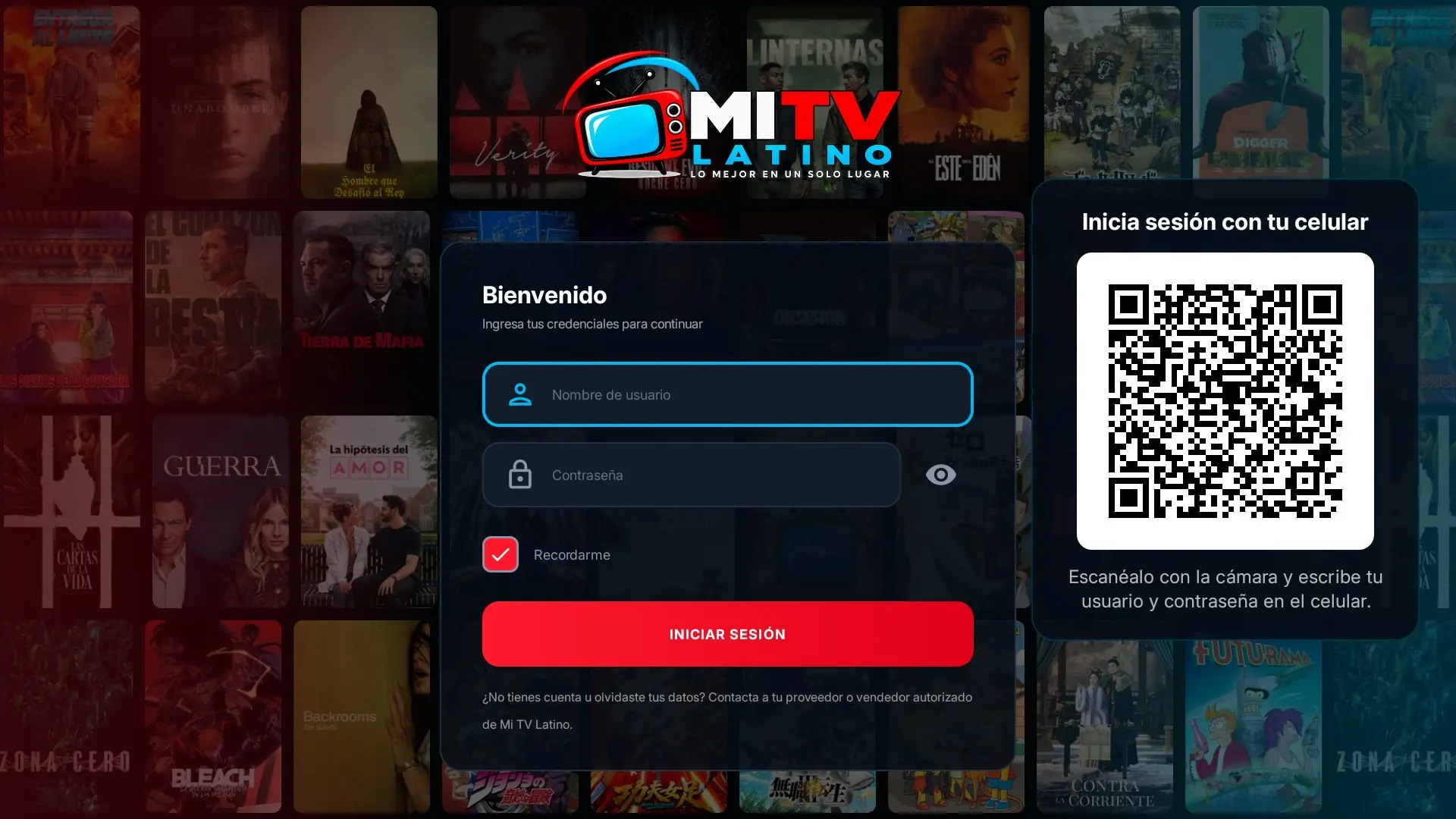
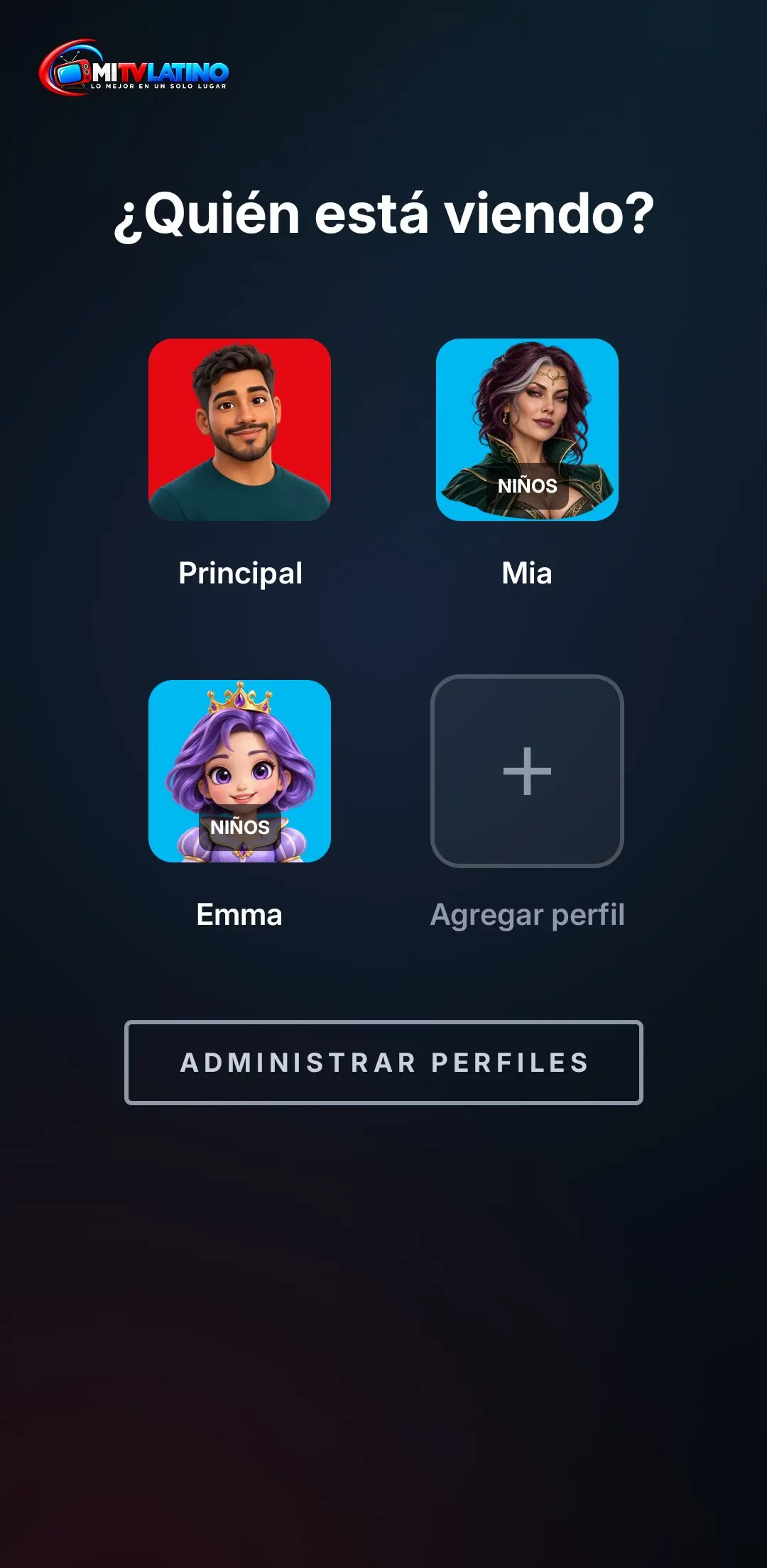
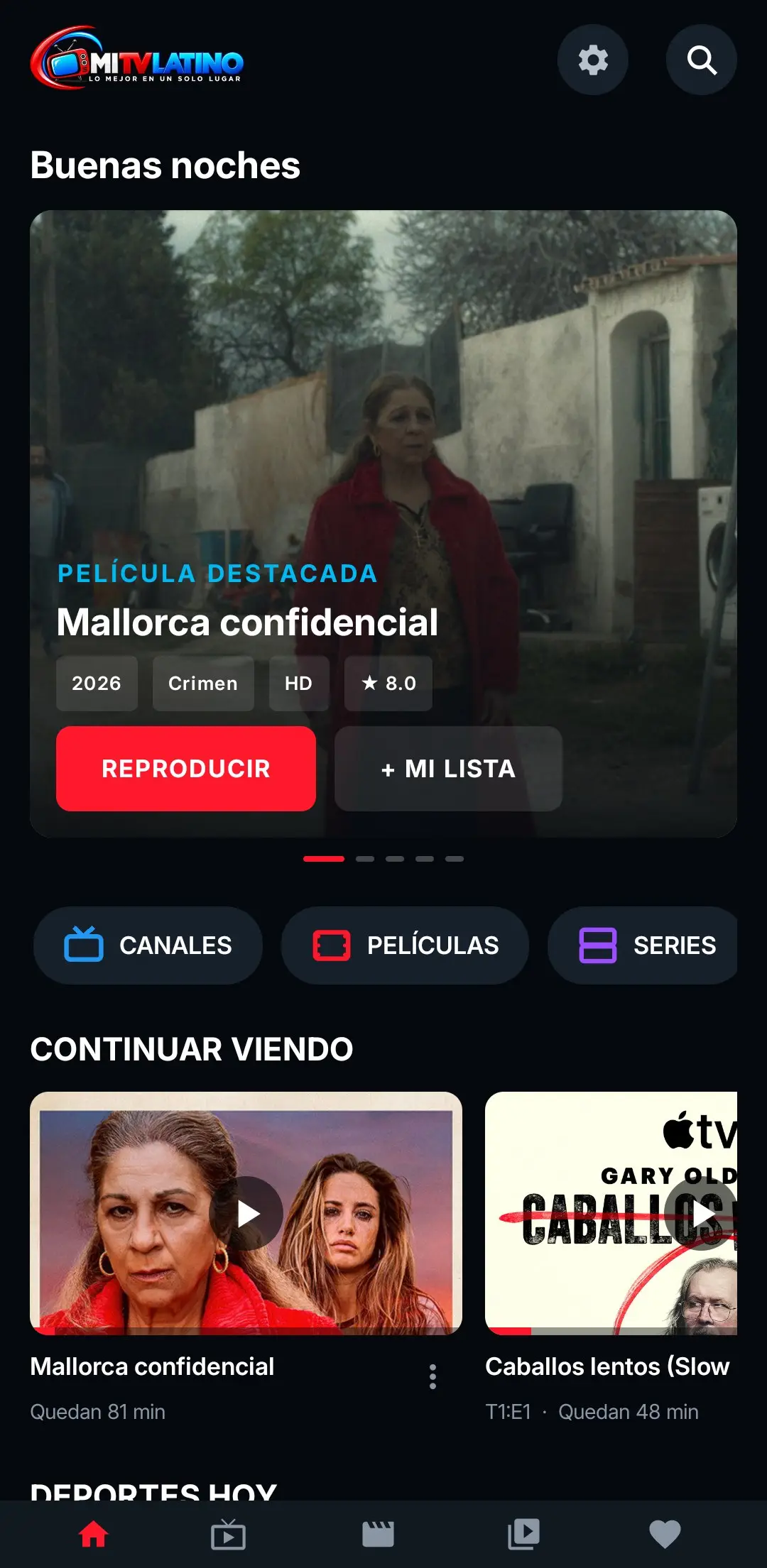
The screenshots show the Mi TV Latino brand; in your app yours appears.
Yes, on Google Play for phones, tablets and Android TV. On LG and Samsung Smart TVs you can install it today with our free program, without waiting for their stores; the official LG and Samsung stores are still under review, with no confirmed date.
Your reseller account with your logo and name, up to 2 DNS, free customers on those DNS and the LG and Samsung Smart TV apps (installable today with our program and, once published, in their stores too), at no extra cost.
Nothing on the DNS registered to your account. Anyone using the app with a DNS that is not registered gets a 7-day trial and then pays $4.99 a year per TV.
Up to 10. The yearly account includes 2; the 3rd to the 10th cost $50 a year each, with their own expiry date.
When you register a DNS we compare its catalog with Mi TV Latino’s. If it matches, your customers get skip intro, cloud profiles and other features. If not, the DNS is still registered as external, with your brand and free for your customers.
Yes, any time from your account. A PNG with a transparent background works best; we optimize it automatically.
No. WBGS IPTV Player is only a player. Each service is responsible for its content and for having the rights to offer it.
Both work. You can upload your logo or use only your brand name: we create the logo from your text and the color you choose. The app always shows an image.
We only keep the optimized version shown in the app; the original file is discarded. If you change or remove your logo, the previous one is deleted, and logos from purchases that are not paid are deleted after 3 days.
Yes. Your customers see your logo and your name inside WBGS IPTV Player, on Android TV, Fire TV and Android phones. The app is only the player: it includes no channels or content; you bring those with your own DNS.
By credit or debit card (processed by Izipay) or by Zelle. With Zelle you upload a screenshot and write your order number in the note; we confirm it and you get your access by email.
Your DNS stop being free for your customers and your account stays saved. When you renew, everything works again with your logo and DNS as they were.
By credit or debit card, in US dollars, processed by Izipay. The payment is yearly and does not renew by itself.
WBGS IPTV Player is only a player: it does not include, sell or host channels, movies or series. Each service is responsible for its own content.
This offer is the WBGS IPTV Player app with your brand inside. If you want your own white-label app with your name and colors, one-time payment, see the Android IPTV App.
5 days, 1 DNS and no card. If it works for you, move to the yearly account without losing anything.